Lab 2 - Arduino Stop Light 🚦
October 01, 2019

Objective
The purposes of this lab are to:
- Reinforce enumerating requirements from use cases and user stories
- Become familiar with the Arduino platform and its programming methodologies.
- Program an Arduino-based microcontroller to use the GPIO pins to control LEDs.
- Develop iteratively, beginning with a minimum viable product and add functionality until the requirements are met.
Materials
The materials used for this lab were
- Personal computer (MacBook Pro)
- 1 x ESP8266 Wemos D1 Mini (Microcontroller)
- 1 x USB -> MicroUSB cable for connecting the Microcontroller to the computer
- 1 x Breadboard
- 1 x Stop light LED component with built in resistors
- 5 x Male to male jumper cables
References
Procedures
- Install the Arduino IDE from here
-
Set up your environment to work with the ESP8266 Wemos D1 Mini
-
Go to Preferences and add the following URL to the Additional Boards Manager URLs field
http://arduino.esp8266.com/stable/package_esp8266com_index.json - Go to
Tools -> Board: [Some Board Name] -> Boards Manager - Search for Wemos
- Install esp8266 by ESP8266 Community (Note: this tutorial was made using verions 2.5.2 and does not guarantee that everything will work the exact same in later versions)
-
Go to
Tools -> Board: [Some Board Name]again and select the following boardLOLIN(WEMOS) D1 R2 & Mini - Go to
Tools -> Portand select the port that your Arduino is plugged into. (If you have issues on this step, you can find help here) - Go to
Tools -> Erase Flash:and selectAll Flash Contents - You are ready to start coding!
-
- Implement WiFi on the Arduino using the example WiFi setup by going to
File -> Examples -> ESP8266WiFi -> WiFiClientBasic - After you have tested that you are able to connect to network, you are ready to start setting up your web server.
- Using the docs found for the ESP8266WebServer Library, create a web server that will turn on and off the lights and set them to a cycle mode. For the cycle mode, I would suggest using the millis() library so that you don’t lock up your server by using delay()‘s.
- Once you have all of your code written and you’re ready to test it, connect your Arduino to the computer and flash it by going to
Sketch -> Upload. - Once it has been flashed, keep it connected and open up the serial monitor (
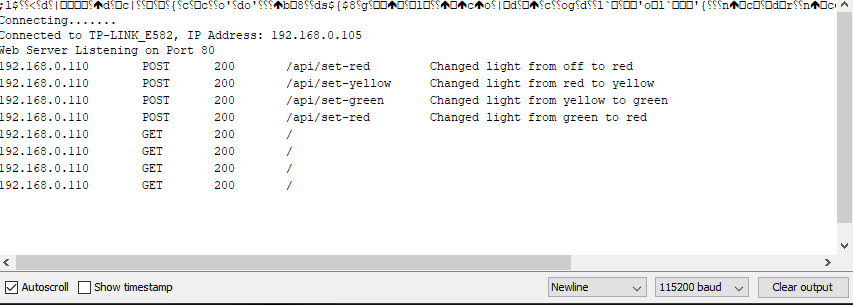
Tools -> Serial Monitor) so that you can monitor the server’s output. - You have now implemented a stoplight using an Arduino! What else can you do using the same simple libraries??
Thought Questions
-
What are some key differences between developing this lab on a Raspberry Pi, and developing on Arduino?
Developing on a Pi has a lot of overhead. There are a lot of different steps needed to even get the Pi up and running and able to host a web server. A Pi has multiple uses other than running a program for you since it has an entire OS on it. An Arduino on the other hand has a single purpose: be given compiled code and run it whenever I have power. Because of the simplistic nature, I had to be more creative to do things that are pretty easily implemented on a Pi (such as timeouts).
-
What are the strengths and trade-offs of each of these platforms?
I think that a Pi can do more complicated things quicker. As well, a Pi is a bit easier to work with. An arduino on the other hand is much more straight forward. There are two functions that need to be implemented and then you have a working product. As well, there is no overhead with starting/stopping a server which I think is incredible. It either has power or it doesn’t and if it does have power, it runs.
-
How familiar were you with the Arduino platform prior to this lab?
I had never used the Arduino platform prior to this lab. However, I will definitely be using it going forward it is an incredibly easy platform to work with and very powerful.
-
What was the biggest challenge you overcame in this lab?
The biggest challenge I had to overcome was getting my Arduino on WiFi. For one reason or another, my Arduino really struggled to get connected. It wasn’t until I erased all settings on the Arduino when I flashed the code (instead of just the sketch) that it actually worked for me.
-
Please estimate the total time you spent on this lab and report.
I spent about 1.5 hours on this project as a whole. Most of that time was familiarizing myself with the Arduino architecture.
Certification of Work
I certify that the solution presented in this lab represents my own work. In the case where I have borrowed code or ideas from another person, I have provided a link to the author’s work in the references, and included a citation in the comments of my code.
— Matthew Robertson
Appendix
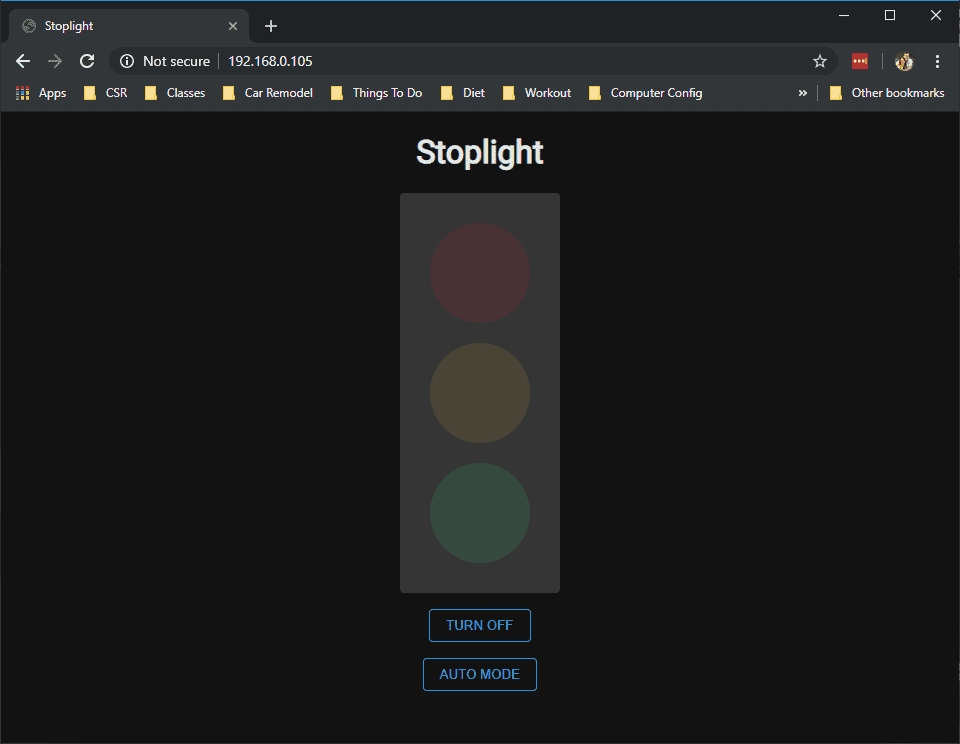
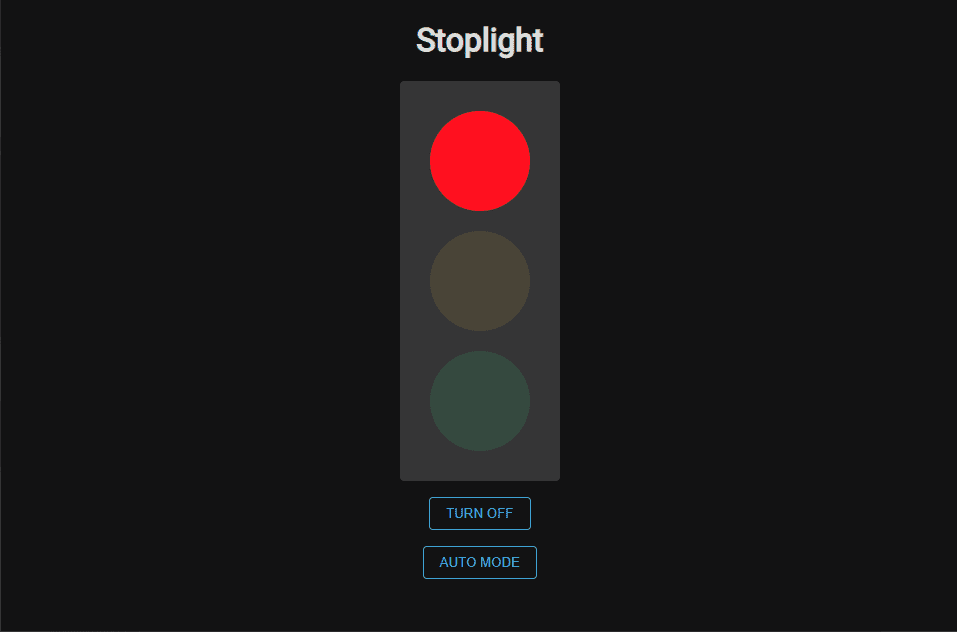
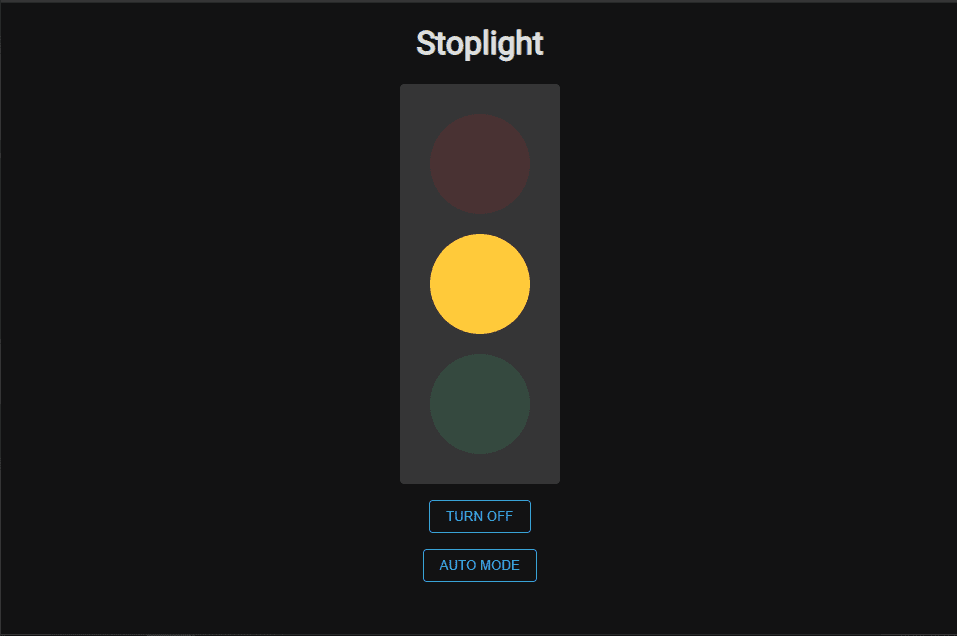
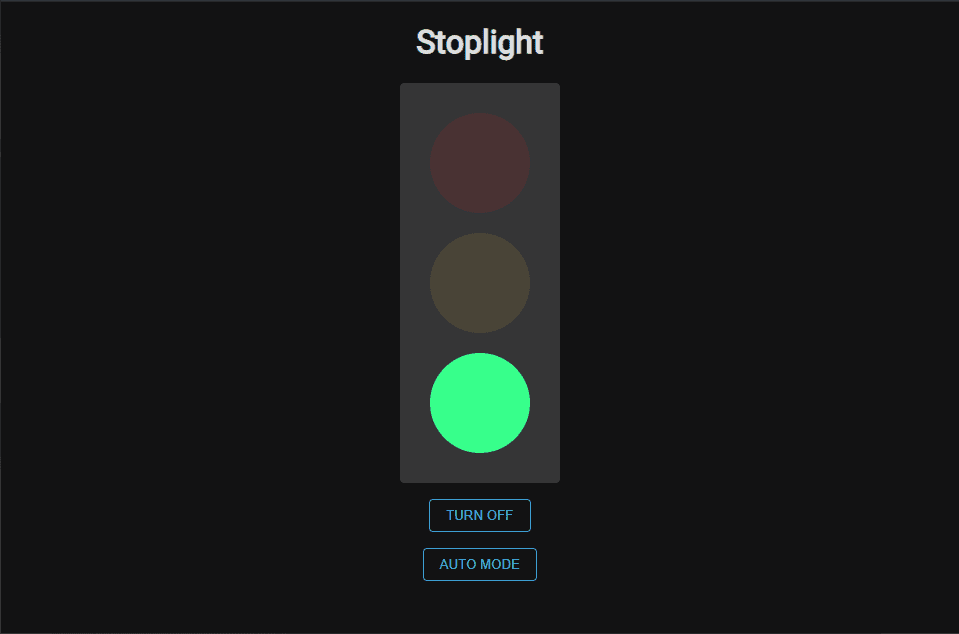
Appendix 1: System Interface - Web Page
State: Startup, /lights-out
State: RED on, during cycle or manual
State: YELLOW on, during cycle or manual
State: GREEN on, during cycle or manual
Appendix 2: Server Output (via Serial)
Appendix 3: Code
Available on GitHub